

Getting started Link to this section
In this page you will find instructions on how to log in to Synergy for the first time. Glance at what your Synergy home screen will look like and the admin dashboard.
Once you have logged in and know the buttons on your home screen and dashboard, the instructions for the Reports, Enrollment, Attendance, Grading, Communication, Discipline and Additional Staff will be easier to navigate.
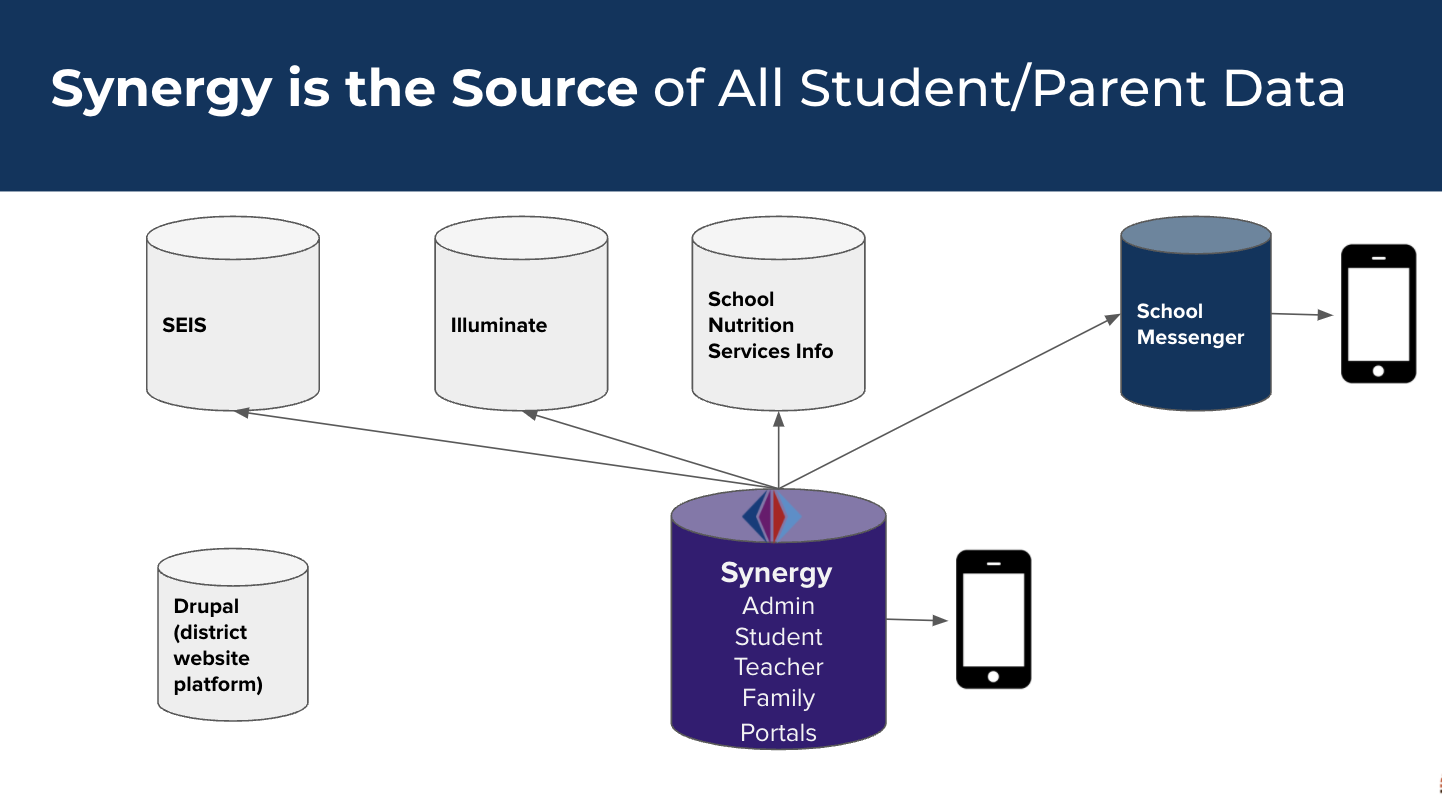
Synergy Homepage & Dashboard Basics
Link to this section
AdminVue Homepage
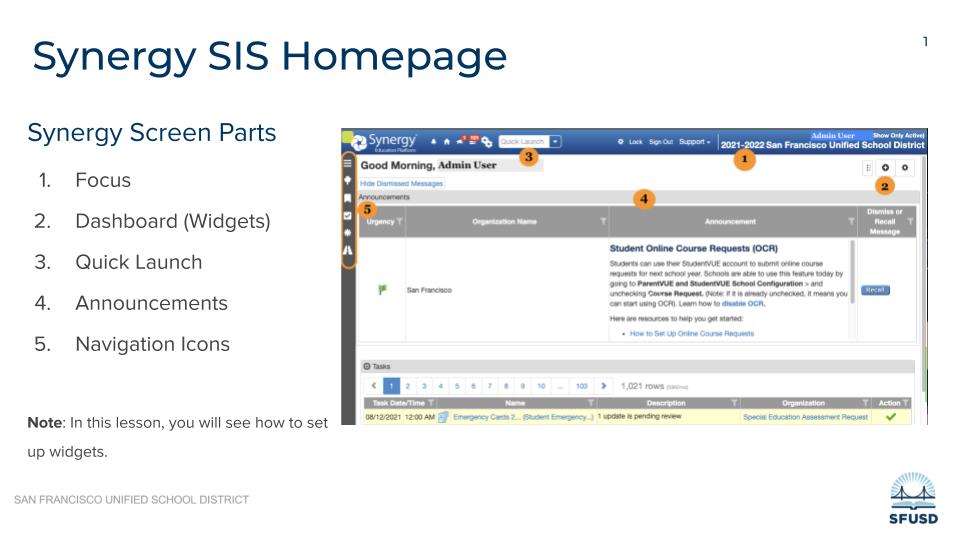
- Quick launch (enter the screen name or the report you want launched)
- Focus (change from viewing information on your school to another school or district wide)
- Navigation Icon (PAD Tree, Bookmark, History)
- Announcements
- Widgets (customizable data bits)
AdminVue Dashboard
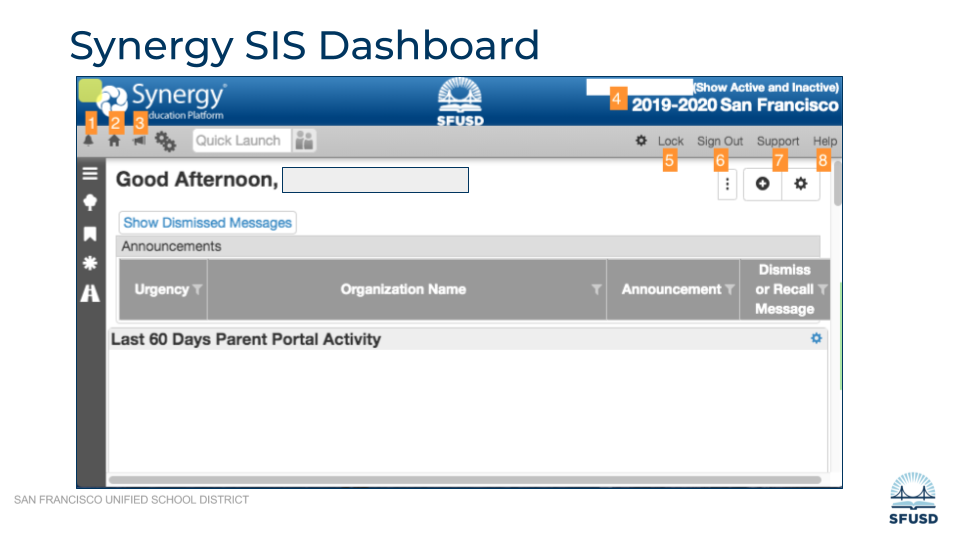
- Bell opens TeacherVUE.
- House icon returns you to your home page.
- Announcements displays messages associated with your site and user permissions.
- Focus area shows the site and school year you are currently using, and whether you are viewing current Active students or un-enrolled Inactive students.
- Lock link will lock your screen and return you to the Login page.
- Sign Out link will end your session and return you to the Login page.
- Support link shows you where to get support.
- Help link opens the complete set of support documents for Synergy.
How do I..
Link to this section
login for the first time?
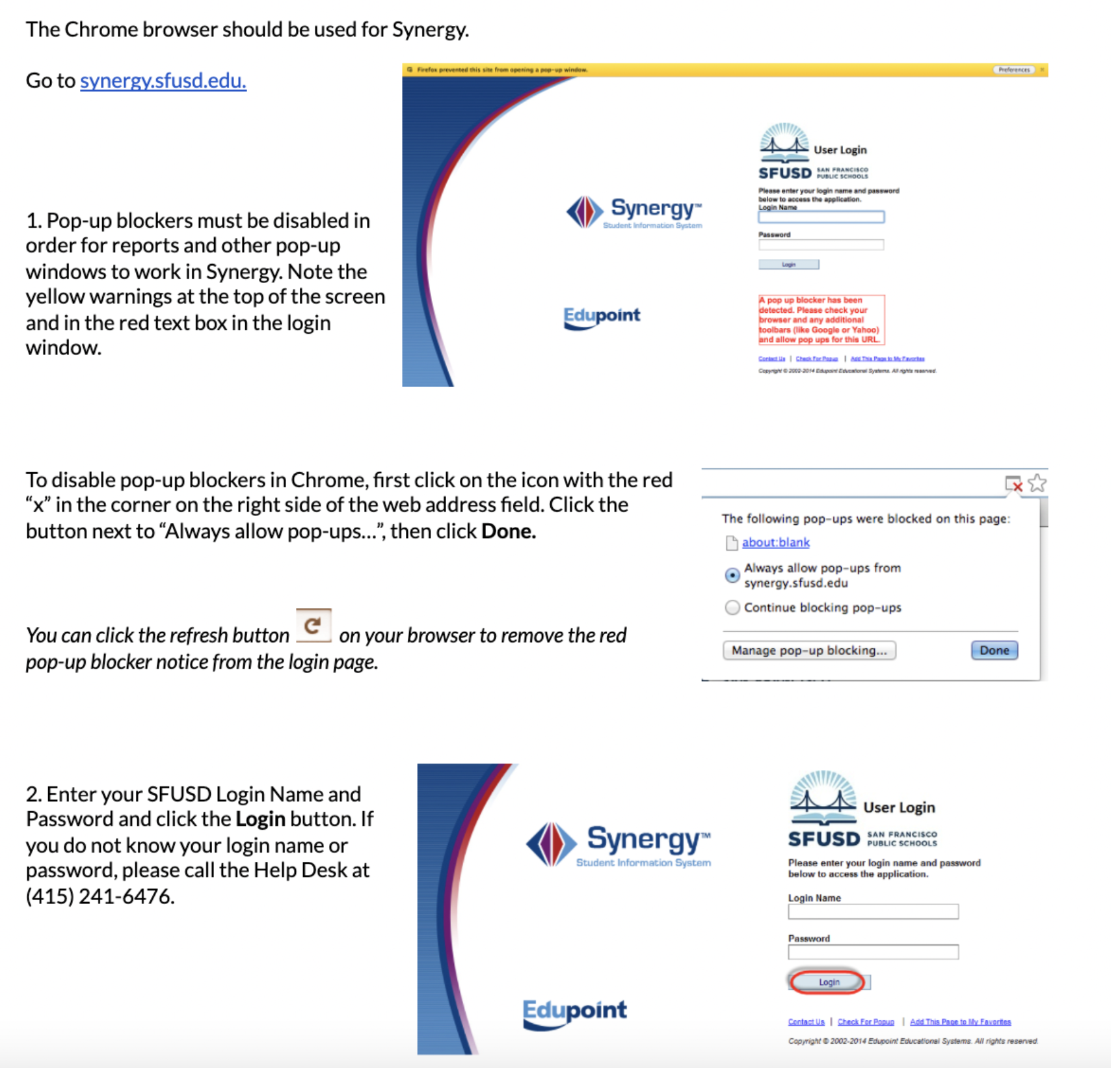
***when logging in you do not need to enter @sfusd.edu just the first part of your email address
set Gmail as the default email account?
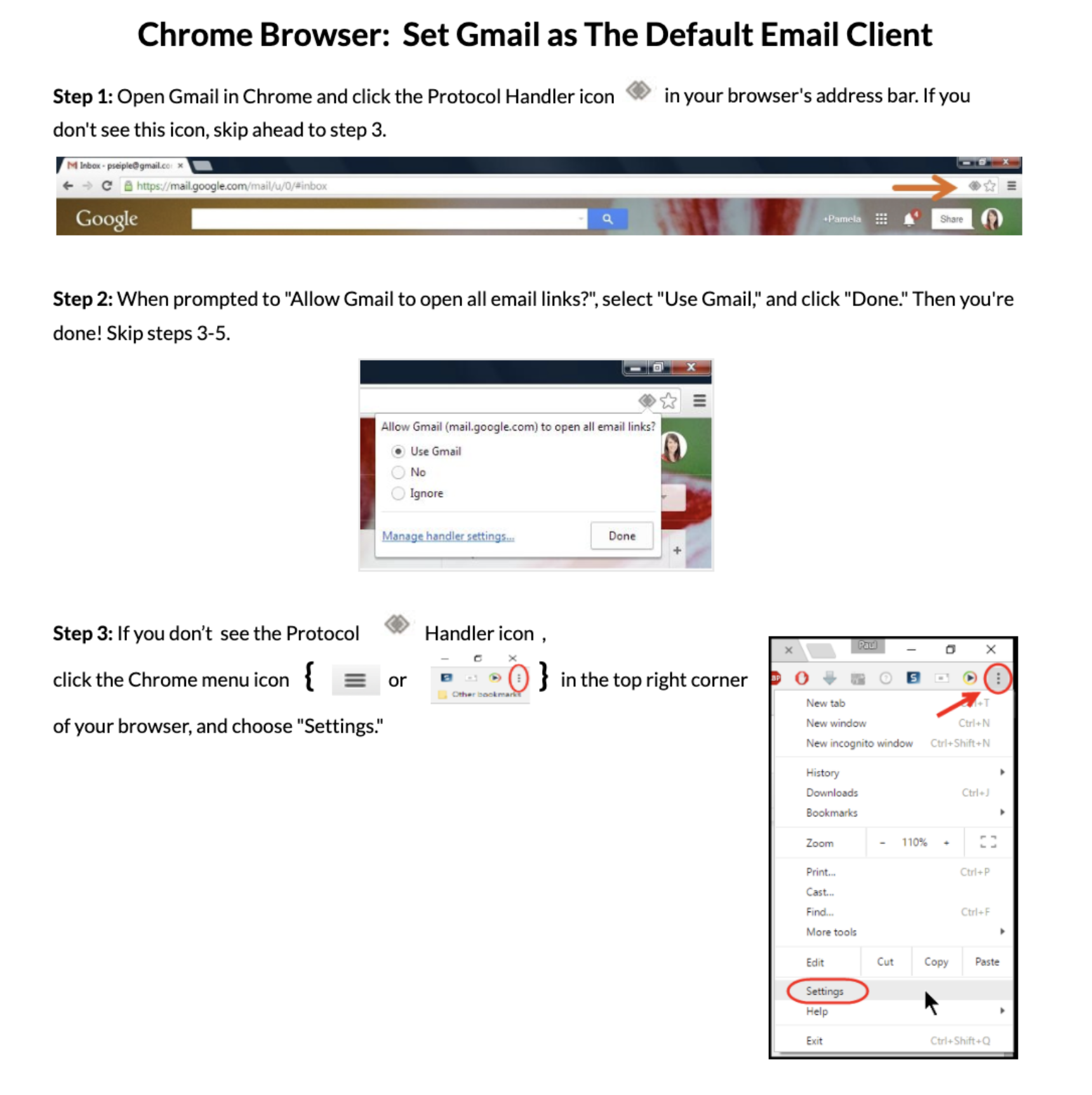
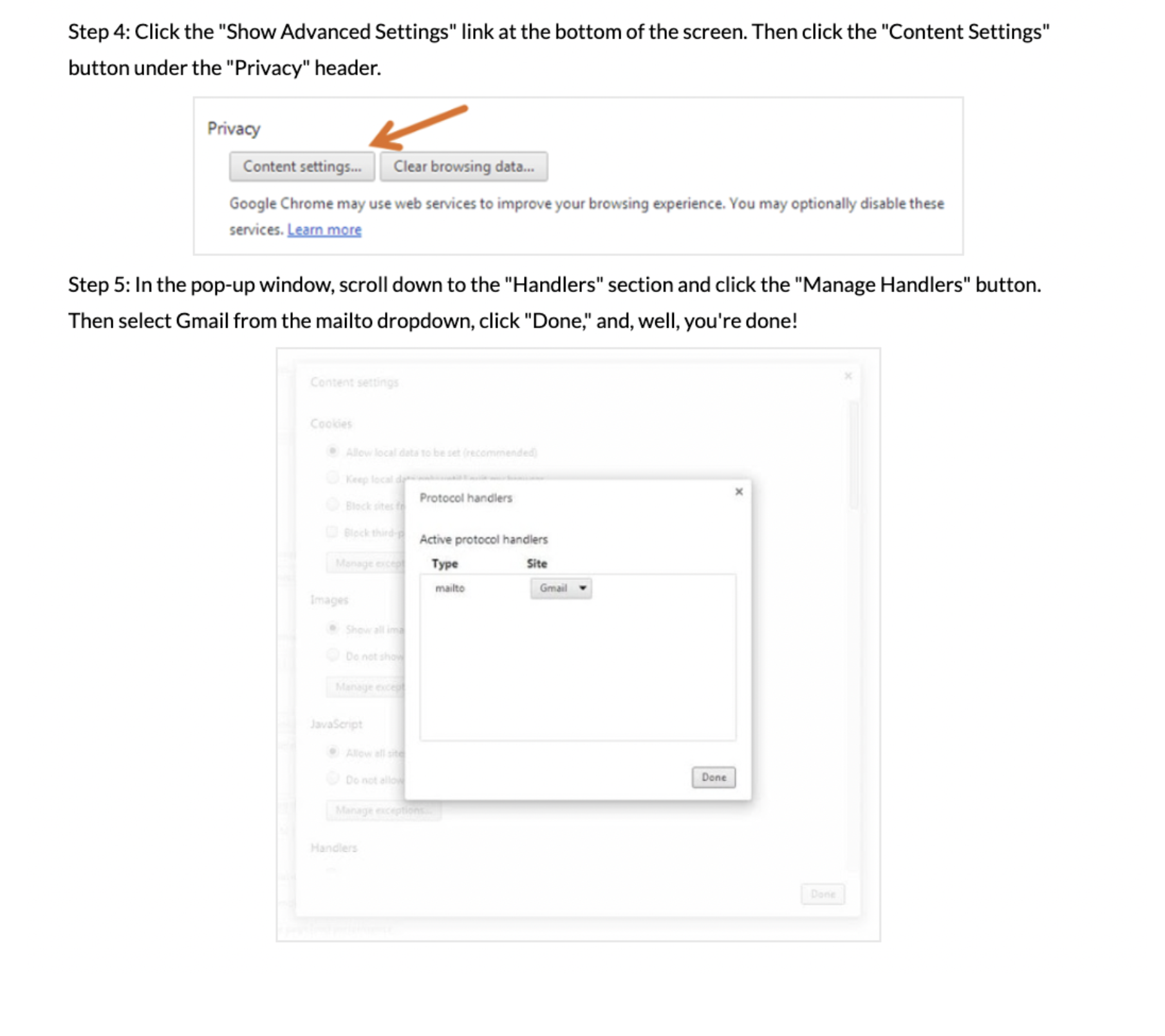
download and login to the mobile app?
use the PAD Tree to find screens and reports?
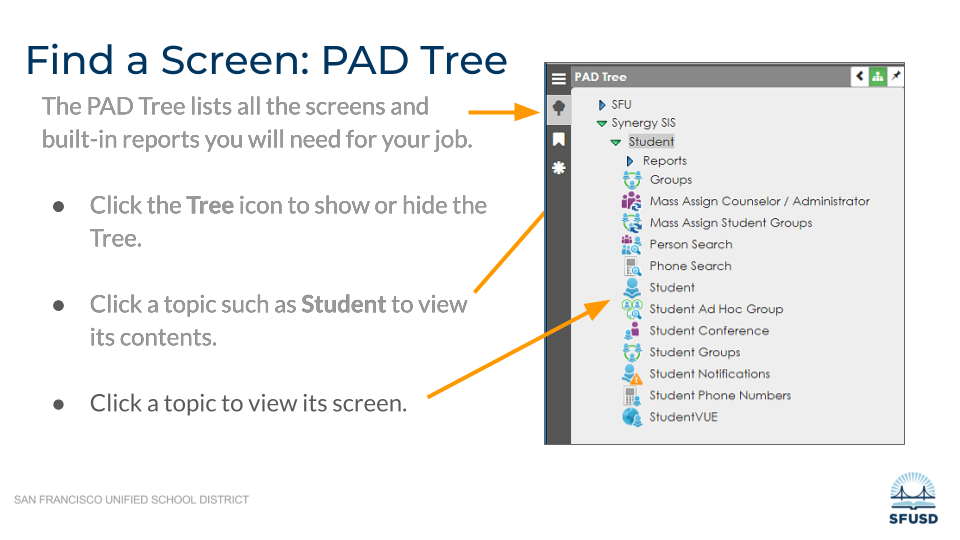
bookmark a screen or report?
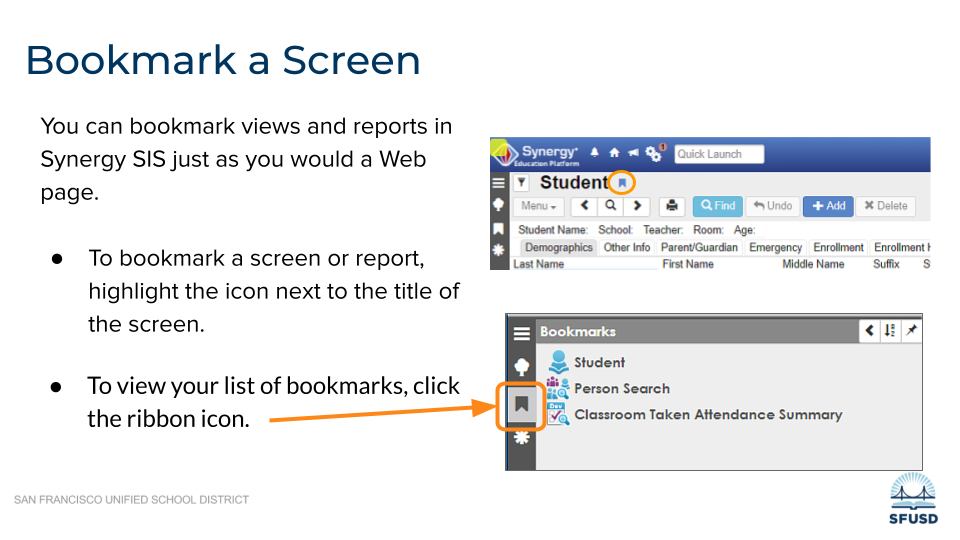
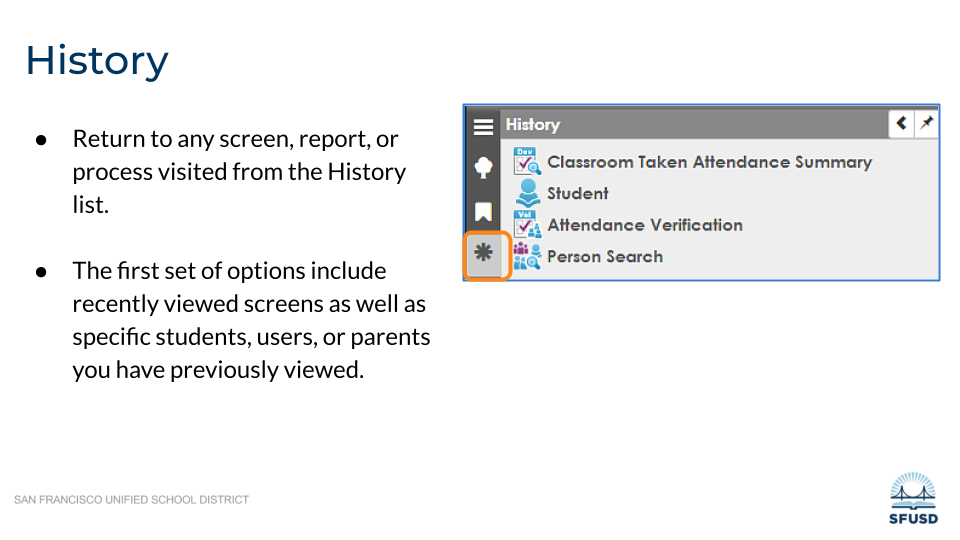
return to any screen previous visited?
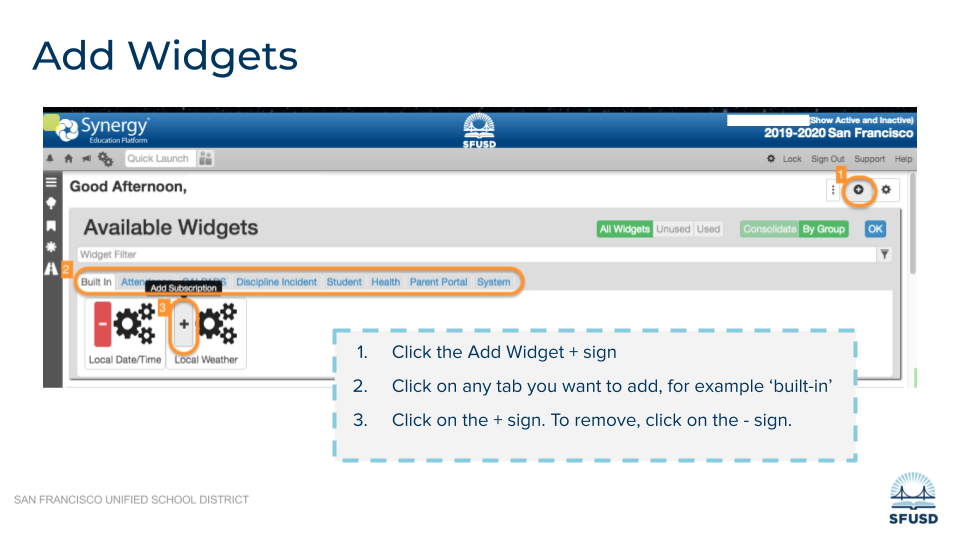
add/change widgets on my homescreen?
change school focus?
request access to synergy?
Synergy SIS access is automated based on an employee's job code in Fronline. Access is automatically provided when a new employee's email account is created and it is based on the role of the employee, e.g. a teacher automatically gets access to TeacherVue Gradebook, posting attendance and report card grades. If the job code is accurate and the employee still does not have required access to Synergy, see requesting regular access below.
Requesting Regular or Expanded Access to Synergy:
If no access exsists for an employee, follow the steps below. Expanded access is appropriate when there is an identified need to access certain areas or screens of Synergy that are not typically included in the access granted through the employee’s job code. To gain expanded access:
- A school site administrator or for a district-office employee, the employee's manager/supervisor, may submit a service request ticket request that includes the following details:
• Employee's First Name
• Employee's Last Name
• Employee's ID Number
• Employee's SFUSD Email Address
• Employee's Role/Position
• School Site or District-Office Department Name
• Type of Access Requested (e.g., attendance view, master schedule edit)
Note: Do not request "All Access" or "Admin. Access." Specify the exact data
type or category and whether permissions should be View-Only or Update.
• Rationale for Access - Once submitted, the access request will be reviewed.
- The Department of Technology will update the principal or supervisor of the status via the service request ticket.
Synergy Access for Non-Employee Contractor/Consultant and/or Volunteers:
If you are a non-employee contractor/consultant, the Site Administrator or Central Office Director/Supervisor who manages the non-employee can apply for Synergy access. Once submitted the access request is reviewed and granted on a case-by-case basis.
No community-based organization (CBO) staff will be granted access to Synergy. Federal law (FERPA) strictly limits access to confidential student data, therefore, CBO staff and/or volunteers are not permitted to access this data.
For more information on how to apply for non-employee Synergy access, please contact the DoT Help Desk at 415-241-6476.
switch between TeacherVue & StudentVue
use the docking area?
access Clever badges?
search and filter information in Synergy?
view a student profile?
view parent profile?
set up my dashboard?
For more assistance Link to this section



This page was last updated on September 6, 2026